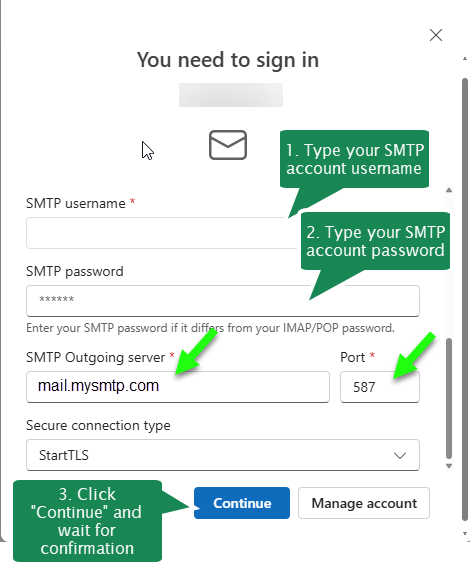
The desktop client Outlook 2025 has not yet been announced final, so this is the guide for those testing the BETA version
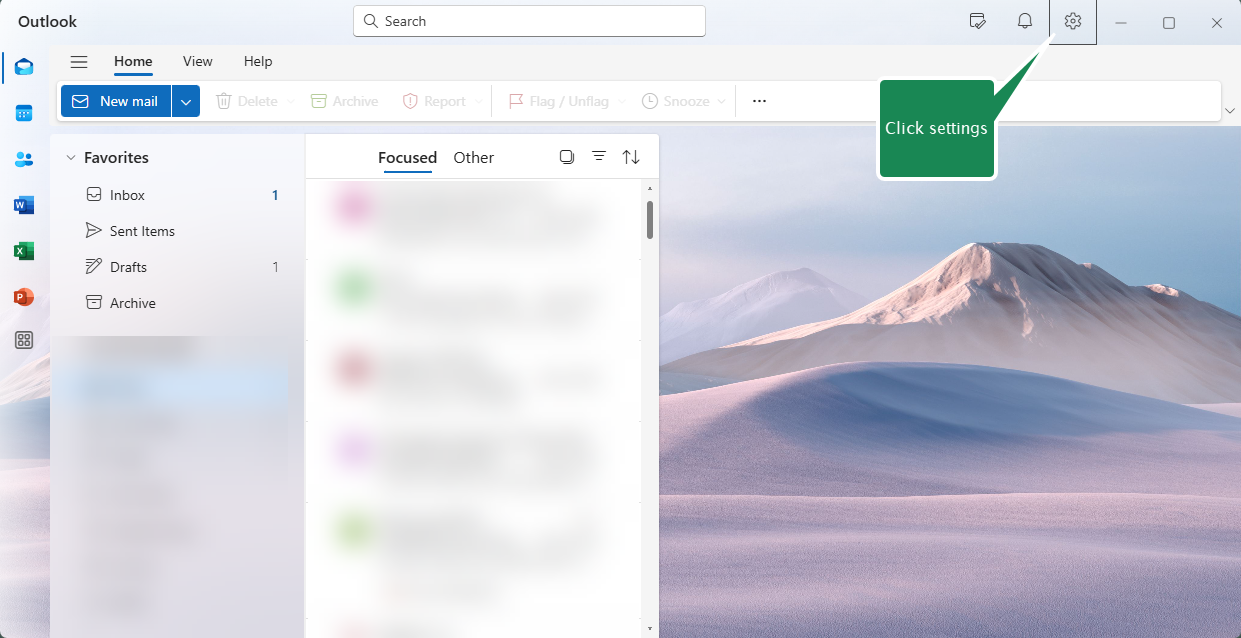
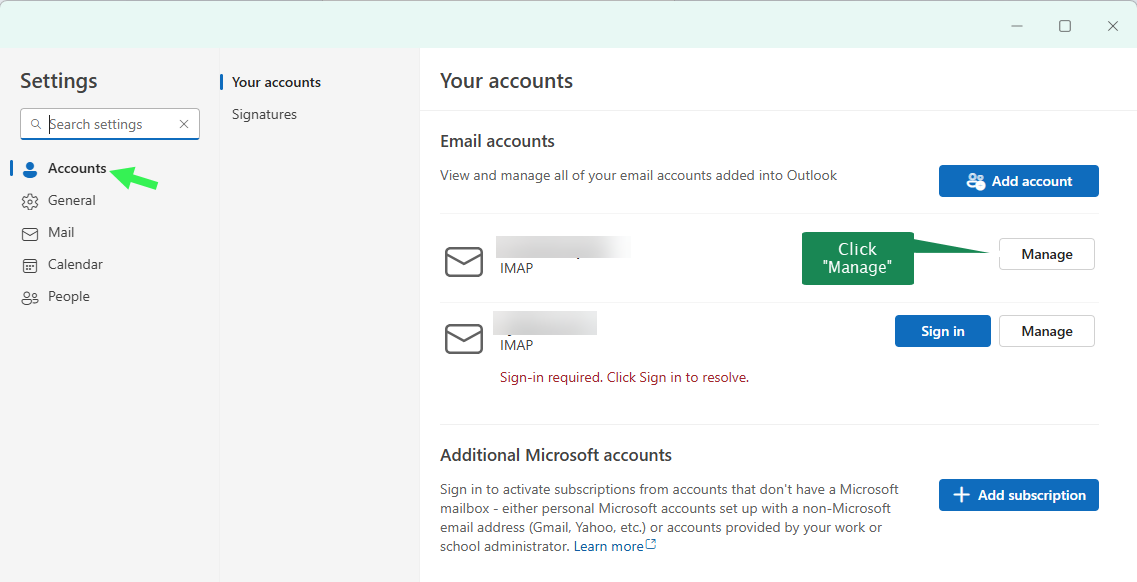
Open Outlook and click the Settings icon and then Manage for the email account you want to use with mySMTP
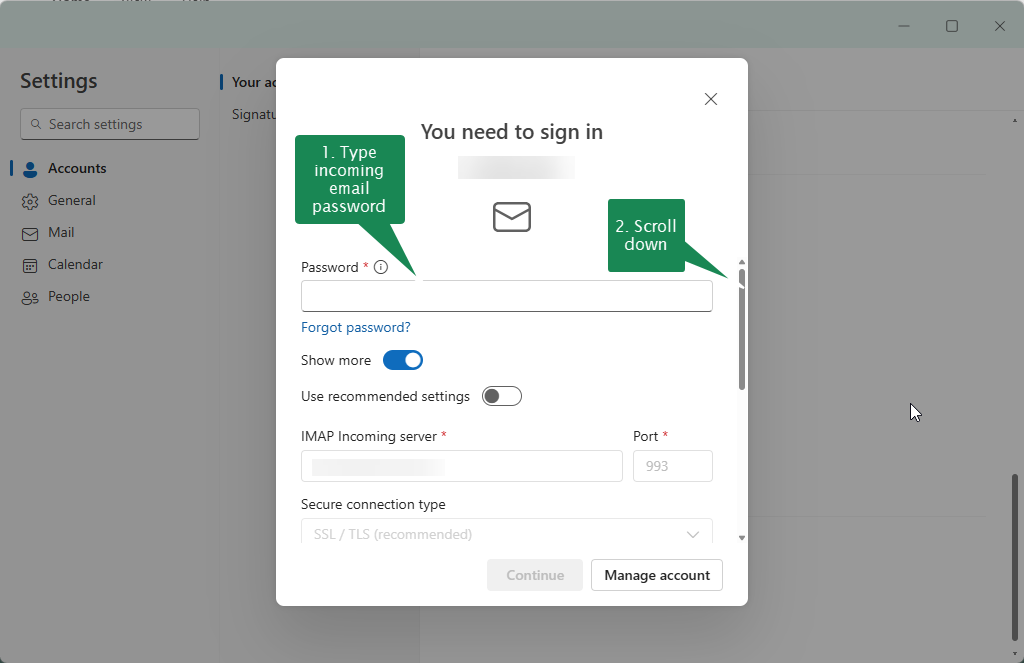
Type the Password for incoming email to enable account editing
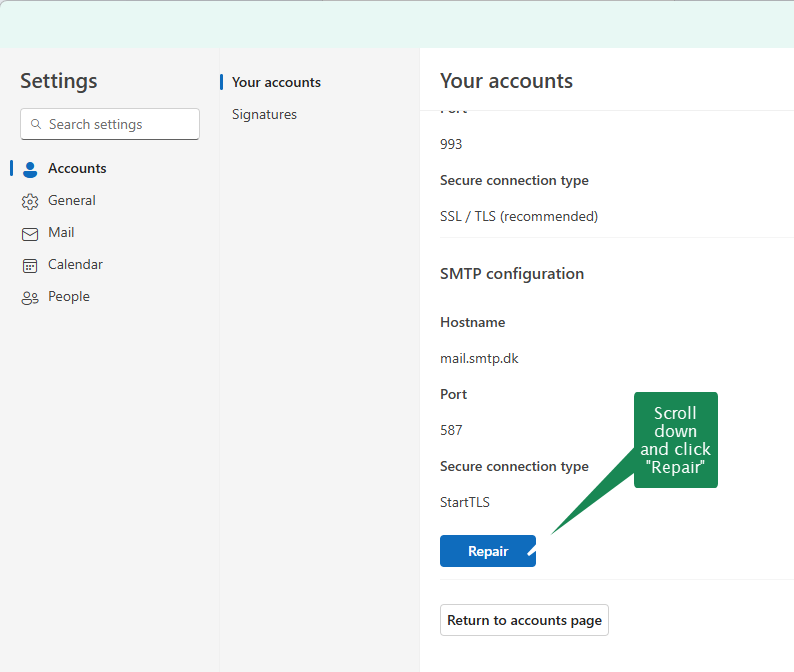
Insert the marked information from your setup email or SMTP account.
Click Continue when done and wait for confirmation.
Setup Guide for Outlook 2016-2025
Your account already uses IMAP for incoming mail. Follow the steps below to configure the outgoing SMTP server.
1. Open Account Settings
Open Outlook and go to:
File > Account Settings > Account Settings…
2. Select Your Account
Select your existing email account (IMAP) and click Change…
3. Outgoing Server Settings
In the Change Account window, set:
Outgoing mail server: mail.smtp.dk
Then click More Settings…
4. Outgoing Server Tab
Open the Outgoing Server tab.
Check:
My outgoing server (SMTP) requires authentication
Choose:
Use same settings as my incoming mail server
5. Advanced Tab
Open the Advanced tab and verify:
Outgoing server (SMTP): 587
Encrypted connection: STARTTLS
6. Test and Finish
Click Next to test your settings.
When the test succeeds, click Close.
Then click Finish to save the account settings.
Outgoing SMTP Settings Summary
.png?fit=max&auto=format&n=-Uw4rR8wfyv_xkzc&q=85&s=898bb0b43b6c9dce61441f46ac9ac860)